На сайте 127131 инструкция общим размером 514.81 Гб , которые состоят из 6432898 страниц
Фото

Руководство пользователя M-AUDIO M-Track. Основные функции, характеристики и условия эксплуатации изложены на 24 страницах документа в pdf формате.
Доступно к просмотру 23 страницы. Рекомендуем вам скачать файл инструкции, поскольку онлайн просмотр документа может сильно отличаться от оригинала.
USER GUIDE
ENGLISH ( 3 – 6 )
GUIA DEL USUARIO
ESPANOL ( 7 – 10 )
GUIDE D'UTILISATION
FRANCAIS ( 11 – 14 )
GUIDA PER L'USO
ITALIANO ( 15 – 18 )
BENUTZERHANDBUCH
DEUTSCH ( 19 – 22 )
USER GUIDE (ENGLISH)
Box Contents
y    M-Track   y    User Guide
y    USB cable   y    Safety Instructions & Warranty Information booklet
y    Software DVD
Support
For  complete  system requirements, compatibility  information, and product registration,  visit  the
support section of the M-Audio website: www.m-audio.com/support.
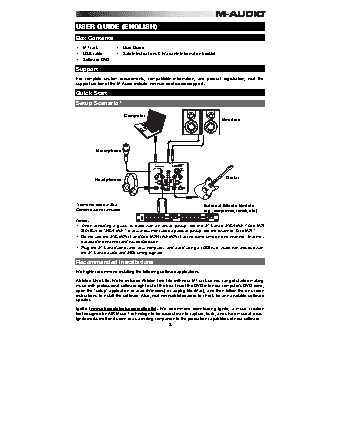
Quick Start
Setup Scenario*
Computer
Monitors
Microphone
Headphones                                     Guitar
* Items not listed in Box                   External Effects Module
Contents are not included.                  (e.g., compressor, reverb, etc.)
Notes:
y  When recording  a guitar  or  bass  with an  active pickup, set  the M-Track's MIC/LINE / GUITAR
SWITCH to "MIC/LINE."  If your instrument uses a passive pickup, set the switch to "GUITAR."
y  Do not use the MIC INPUT and GUITAR/LINE INPUT at the same time on one channel. This may
overload the channel and cause distortion.
y  Plug the M-Track directly into your computer, and avoid using a USB hub. Hubs can interfere with
the M-Track's audio and MIDI timing signals.
Recommended Installations
We highly recommend installing the following software applications:
Ableton Live Lite: We've included Ableton Live Lite with your M-Track so you can get started making
music with professional software right out of the box. Insert the DVD into your computer's DVD drive,
open the "setup" application or .exe (Windows) or .mpkg file (Mac), and then follow the on-screen
instructions to install the software. Also, visit www.ableton.com to check for any available software
updates.
Ignite (www.airmusictech.com/getignite): We recommend downloading Ignite, a music creation
tool designed by AIR Music Technology to be easiest way to capture, build, and share musical ideas.
Ignite works well on its own or as a writing companion to the production capabilities of your software.
3
Audio Setup
The M-Track is a class-compliant device that can be used with   Be sure your audio software program is set up to receive
any digital audio workstation (DAW) or recording software that   audio via the M-Track. This can usually be done in your
supports USB  audio.  To enable your M-Track to send and   software's "Preferences" or "Device Setup."  Please
receive audio to and from your computer, follow the   consult your software manual for more information.
instructions below for your computer's operating system.
If you want even lower latency, read the text in the gray box at the bottom of the page, which discusses ASIO4ALL.
Windows
Windows 7:
1.   Use the included cable to connect the M-Track to your computer.
2.   Go to Start Menu   Control Panel   Hardware and Sound   Sound.
3.   Click the Playback tab and select M-Track as the default device.
4.   Click the Recording tab and select M-Track as the default device.
5.   Click Properties in the lower right-hand corner.
6.   In the new window, click the Advanced tab and select 2-channel, 16-bit, 44100 Hz (CD Quality) as the default format.
7.   Uncheck both boxes under Exclusive Mode.
8.   Click the Levels tab and set the slider to "4."
9.   Click OK to close the Properties window.
10.   Click OK to close the Sound control panel.
Note: If you are using the ASIO4ALL driver (see below), before you open the ASIO4ALL control panel, use the steps above to
make sure M-Track is not selected as the default device. If you want to play your computer's audio through M-Track after you
close your DAW, you may need to repeat the steps above to reselect it as the default device.
Windows Vista:
1.   Use the included cable to connect the M-Track to your computer.
2.   Go to Start Menu   Control Panel   Sound. (If you don't see Sound, select Switch to Classic View, and the Sound
Control Panel should become available.)
3.   Click the Playback tab and select M-Track as the default device.
4.   Click the Recording tab and select M-Track as the default device.
5.   Click Properties in the lower right-hand corner.
6.   In the new window, click the Advanced tab and select 2-channel, 16-bit, 44100 Hz (CD Quality) as the default format.
7.   Uncheck both boxes under Exclusive Mode.
8.   Click OK to close the Properties window.
9.   Click OK to close the Sound control panel.
Note: If you are using the ASIO4ALL driver (see below), before you open the ASIO4ALL control panel, use the steps above to
make sure M-Track is not selected as the default device. If you want to play your computer's audio through M-Track after you
close your DAW, you may need to repeat the steps above to reselect it as the default device.
Windows XP:
1.   Use the included cable to connect the M-Track to your computer.
2.   Go to Start Menu   Control Panel   Sounds and Audio Devices.
3.   Click the Audio tab.
4.   Under Sound Playback and Sound Recording, select USB Audio Codec as the default device. (If you have other
USB audio devices connected to your computer, which may have identical names, you may need to try selecting each
one until the M-Track is recognized.)
5.   Click OK.
Note: If you are using the ASIO4ALL driver (see below), before you open the ASIO4ALL control panel, use the steps above to
make sure M-Track is not selected as the default device. If you want to play your computer's audio through M-Track after you
close your DAW, you may need to repeat the steps above to reselect it as the default device.
IMPORTANT: If you  experience  too much  latency after adjusting your software latency settings, we recommend  the free
ASIO4ALL (Audio Stream Input/Output) driver for Windows at www.asio4all.com. ASIO drivers generally perform better and
with lower latency since they create a more efficient communication between audio devices and software.
To download and install ASIO4ALL:
1.   Go to www.asio4all.com and download the latest release for your region.
2.   Double-click the downloaded ASIO4ALL .exe file.
3.   Follow the on-screen instructions to install ASIO4ALL.
To set up ASIO4ALL with your DAW:
1.   With M-Track connected to your computer, open your DAW.
2.   Click the arrow icon in the Windows System Tray, which will open the ASIO4ALL control panel.
3.   Click the wrench icon in the lower right corner of the control panel.
4.   Under the WDM Device List, click the + box next to M-Track to expand it. (In Windows XP, this will appear as USB
Audio Codec.)
5.   Make sure both boxes next to the Out and In under M-Track (or USB Audio Codec in Windows XP) are checked/lit. If
they are not, click them.
6.   Make sure all other boxes are unchecked/unlit. If they are checked/lit, click them.
7.   Close the control panel.
Note: You can select M-Track as your default device in the ASIO4ALL control panel only if it is not selected as your Windows
default device.
4